Sunday, August 1, 2021

CONTROL FILES MULTIPLEXING


Control files multiplexing


SQL> select name from v$controlfile;


NAME

----------------------------------------------------------------------------------------------------

/u01/app/oracle/oradata/TESTDB/control01.ctl

/u01/app/oracle/oradata/TESTDB/control02.ctl


SQL> desc v$controlfile;

 Name                                                                     Null?         Type

 ----------------------------------------------------- -------- ------------------------------------

 STATUS                                                                                 VARCHAR2(7)

 NAME                                                                                    VARCHAR2(513)

 IS_RECOVERY_DEST_FILE                                               VARCHAR2(3)

 BLOCK_SIZE                                                                         NUMBER

 FILE_SIZE_BLKS                                                                  NUMBER

 CON_ID                                                                                  NUMBER


SQL> show parameter control_files


NAME                                          TYPE          VALUE

------------------------------------ ----------- ------------------------------

control_files                                 string           /u01/app/oracle/oradata/TESTDB

                                                                         /control01.ctl, /u01/app/oracl

                                                                         e/oradata/TESTDB/control02.ctl


Multiplexing Control Files using spfile

Steps are similar as the above using init.ora file. The major difference is how CONTROL_FILES parameter is changed.
step -1
SQL> ALTER SYSTEM SET CONTROL_FILES='/u01/app/oracle/oradata/TESTDB/control01.ctl',

  2  '/u01/app/oracle/oradata/TESTDB/control02.ctl',

  3  '/u01/app/oracle/control03.ctl' SCOPE=spfile;

System altered.

SQL> show parameter control_files


NAME                                          TYPE          VALUE

------------------------------------ ----------- ------------------------------

control_files                                 string           /u01/app/oracle/oradata/TESTDB

                                                                         /control01.ctl, /u01/app/oracl

                                                                         e/oradata/TESTDB/control02.ctl

2. Shut down the instance


SQL> shut immediate

Database closed.

Database dismounted.

ORACLE instance shut down.

SQL> exit


3. Copy the control file to more locations using operating system command.

[oracle@testdb ~]$ pwd

/home/oracle

[oracle@testdb ~]$ cp /u01/app/oracle/oradata/TESTDB/control02.ctl /u01/app/oracle/control03.ctl

[oracle@testdb ~]$ . .testdb.env;

[oracle@testdb ~]$ sqlplus / as sysdba


4. startup;

SQL> startup

ORACLE instance started.

Total System Global Area 1610609200 bytes

Fixed Size                        8897072 bytes

Variable Size                 385875968 bytes

Database Buffers         1207959552 bytes

Redo Buffers                   7876608 bytes

Database mounted.

Database opened.

SQL> show parameter controlfiles;

SQL> show parameter control_files


NAME                                          TYPE          VALUE

------------------------------------ ----------- ------------------------------

control_files                                 string           /u01/app/oracle/oradata/TESTDB

                                                                         /control01.ctl, /u01/app/oracl

                                                                         e/oradata/TESTDB/control02.ctl

                                                                         , /u01/app/oracle/control03.ct

                                                                         l


Multiplexing Control Files using the init.ora file

Multiplexing is the process of mintaining a copy of same control files on different disk drivers (and idealy on different controllers). To multiplex your control files, we copy the control file to multiple locations and change the CONTROL_FILES parameter in the text based initialization file init.ora to include all control files names.

1. Shut down the database
SQL> shut immediate

Database closed.

Database dismounted.

ORACLE instance shut down.

SQL> exit


2. Copy the control file to more locations using operating system command.


[oracle@testdb ~]$ cp /u01/app/oracle/oradata/TESTDB/control02.ctl u03/oracle/control04.ctl;


cp u01/app/oradata/ord/control01.ctl  u05/app/oradata/ord/control02.ctl

3. Change the initialization parameter to include new file in the parameter

.control_files='/u01/app/oracle/oradata/TESTDB/control01.ctl','/u01/app/oracle/oradata/TESTDB/control02.ctl','u03/oracle/control04.ctl';


*.db_block_size=8192

*.db_domain=''

*.db_name='TESTDB'

*.diagnostic_dest='/u01/app/oracle'

*.dispatchers='(PROTOCOL=TCP) (SERVICE=TESTDBXDB)'

*.open_cursors=300

*.pga_aggregate_target=536870912

*.processes=150

*.remote_login_passwordfile='EXCLUSIVE'

*.sga_target=1610612736

*.undo_tablespace='UNDOTBS1'


4. Start the instance

SQL> startup;

ORACLE instance started.

Total System Global Area 1610609200 bytes

Fixed Size                        8897072 bytes

Variable Size                 385875968 bytes

Database Buffers         1207959552 bytes

Redo Buffers                   7876608 bytes

Database mounted.

Database opened.

SQL> show parameter control_files


NAME                                          TYPE          VALUE

------------------------------------ ----------- ------------------------------

control_files                                 string           /u01/app/oracle/oradata/TESTDB

                                                                         /control01.ctl, /u01/app/oracl

                                                                         e/oradata/TESTDB/control02.ctl

                                                                         , /u03/oracle/control04.ctl


SQL>

Monday, July 19, 2021

LINUX Commands


Linux commands


BASIC COMMANDS


Hostname- hostname command in Linux is used to obtain the DNS(Domain Name System) name and set the system’s hostname or NIS(Network Information System) domain name.


Hostname-A : This option is used to get all FQDNs(Fully Qualified Domain Name) of the host system.


Hostname -b : Used to always set a hostname. Default name is used if none specified


Hostname -d : This option is used to get the Domain if local domains are set


Hostname -f : This option is used to get the Fully Qualified Domain Name(FQDN). It contains short hostname and DNS domain name.


Hostname -i option:This option is used to get the IP(network) addresses


Hostname -V : gives version number as output


Uname command

Uname command is used to display basic information about the operating system and hardware. With options, Uname prints kernel details, and system architecture.

Uname -s kernal name

Uname -r kernal release

Uname -v kernal version

Uname -n node name

Uname -m hardware name

Uname -I hardware platform

Uname-p processor type

Uname-a shows all parameters


Date commands

date command is used to display the system date and time. date command is also used to set date and time of the system

Date -u display time in GMT

Date --date=" string "  Displays the given date string in the format of date

Using –date option for displaying past dates:

$date --date="2 year ago"
$date --date="next tue"
$date +%[format-option]-Format specifiers used with date command:
$date +% d
$date +% m


Cal command 
cal command is a calendar command in Linux which is used to see the calendar of a specific month or a whole year.
cal [ [ month ] year]


PWD command

The pwd command stands for print working directory. It is one of the most basic and frequently used commands in Linux. When invoked the command prints the complete path of the current working directory.


Mkdir command

mkdir command in Linux allows the user to create directories

This command can create multiple directories at once as well as set the permissions for the directories.

Mkdir -p

-p: A flag which enables the command to create parent directories as necessary. If the directories exist, no error is specified.

-m: This option is used to set the file modes, i.e. permissions, etc. for the created directories


Cd command


cd command in linux known as change directory command. It is used to change current working directory

cd /: this command is used to change directory to the root directory, The root directory is the first directory in your filesystem hierarchy.

cd dir_1/dir_2/dir_3: This command is used to move inside a directory from a directory

cd ~ : this command is used to change directory to the home directory

cd .. : this command is used to move to the parent directory of current directory, or the directory one level up from the current directory. “..” represents parent directory.


FILE create commands

Touch

The touch command allows us to update the timestamps on existing files and directories as well as creating new, empty files.

Cat

The cat command is mainly used to read and concatenate files, but it can also be used for creating new files.

Vi- virtual editor vi filename.txt command used to create virtual editor

By pressing keys in keyboard to perform action in vi

Insert - a,I,o,u

  • :w - Save the file but keep it open
  • :q - Quit without saving
  • :wq - Save the file and quit


DU -disk usage command

Command du stands for Disk Usage. It is used to check the information of disk usage of files and directories on a system.

du -a    List all files and directories size

du -h    Display in human readable format

du -c    Display grand total in the output

du -s    Display only total


DF command

Linux df command is used to display the disk space used in the file system. The 'df' stands for "disk filesystem." It defines the number of blocks used, the number of blocks available, and the directory where the file system is mounted.

Df -To display the disk space usage, execute the df command without any argument.

Df -h -Display the disk space usage in a human-readable form

Df -T -display file system type

Df -t filename -display specific file system type


TOP command

top command is used to show the Linux processes. It provides a dynamic real-time view of the running system. Usually, this command shows the summary information of the system and the list of processes or threads which are currently managed by the Linux Kernel.


CPU information commands


Using cat command to get cpu information

 Cat/proc/cpuinfo


The command lscpu prints CPU architecture information from sysfs and /proc/cpuinfo as shown below:


Memory information commands

Cat /proc/meminfo

This is a virtual file that reports the amount of available and used memory. It contains real-time information about the system’s memory usage as well as the buffers and shared memory used by the kernel


free Command to Display the Amount of Physical and Swap Memory


The vmstat command is a useful tool that reports virtual memory statistics.


WHO command

who is a command-line utility that prints a list of currently logged in users. It can also show the current run level, time of the last system boot, and more.


LS commands

ls with no option list files and directories in bare format where we won’t be able to view details like file types, size, modified date and time, permission and links etc.

ls -l (-l is character not one) shows file or directory, size, modified date and time, file or folder name and owner of file and its permission.

Ls -a list all files including hidden files

Ls- lh list all files with human readable formet

Ls -ltr With combination of -ltr will shows latest modification file or directory date as last.


Cp command

cp stands for copy. This command is used to copy files or group of files or directory. It creates an exact image of a file on a disk with different file name. cp command require at least two filenames in its arguments


MV command

mv stands for move. mv is used to move one or more files or directories from one place to another in a file system


RM command

rm stands for remove here. rm command is used to remove objects such as files, directories, symbolic links and so on from the file 


HEAD command

The head command, as the name implies, print the top N number of data of the given input by default it prints top 10 lines

Tail command

The tail command, as the name implies, print the last N number of data of the given input. By default it prints the last 10 lines of the specified files. 


Word count commands

Wc -l counting number of lines in the file

Wc -w counting words

Wc -c counting characters


ROOT commands

On every Linux system, the root account is a special user with administrative rights. Logging in as root (or executing commands with root privileges) is necessary for many tasks.

There is a special command named su (for "super user," or "switch user") that allows you to run commands as the root account temporarily.


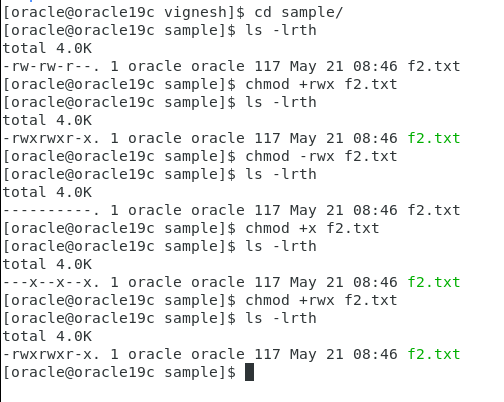
Permission commands


chmod +rwx filename to add permissions.

chmod -rwx directoryname to remove permissions.

chmod +x filename to allow executable permissions.

chmod -wx filename to take out write and executable permissions.


File Compress commands

To reduce the file size by using compress commands

gzip - command used to compress the file size

Gunzip - unzip the original file size


Beyond No-Code: How Oracle AI Agent Studio Uses MCP, Governance, and AI-Unit Monitoring to Build Production-Ready Industry Agents

  Beyond No-Code: How Oracle AI Agent Studio Uses MCP, Governance, and AI-Unit Monitoring to Build Production-Ready Industry Agents Recentl...